Digital Signature / DSC Tool

Batch-sign PDFs — invoices, GeM bids, tenders, GST documents — using your own USB DSC token. Your private key never leaves the hardware token.

What Is It

Digital signing, without the one-PDF-at-a-time grind

Filing a GeM bid, a tender, or a batch of e-invoices usually means signing each PDF one at a time through your DSC software — slow, repetitive, and easy to get wrong under deadline pressure.

The DSC Tool automates this: point it at a folder of PDFs, confirm your signing placement, and it signs the entire batch using your connected USB DSC token — the same token you already use today.
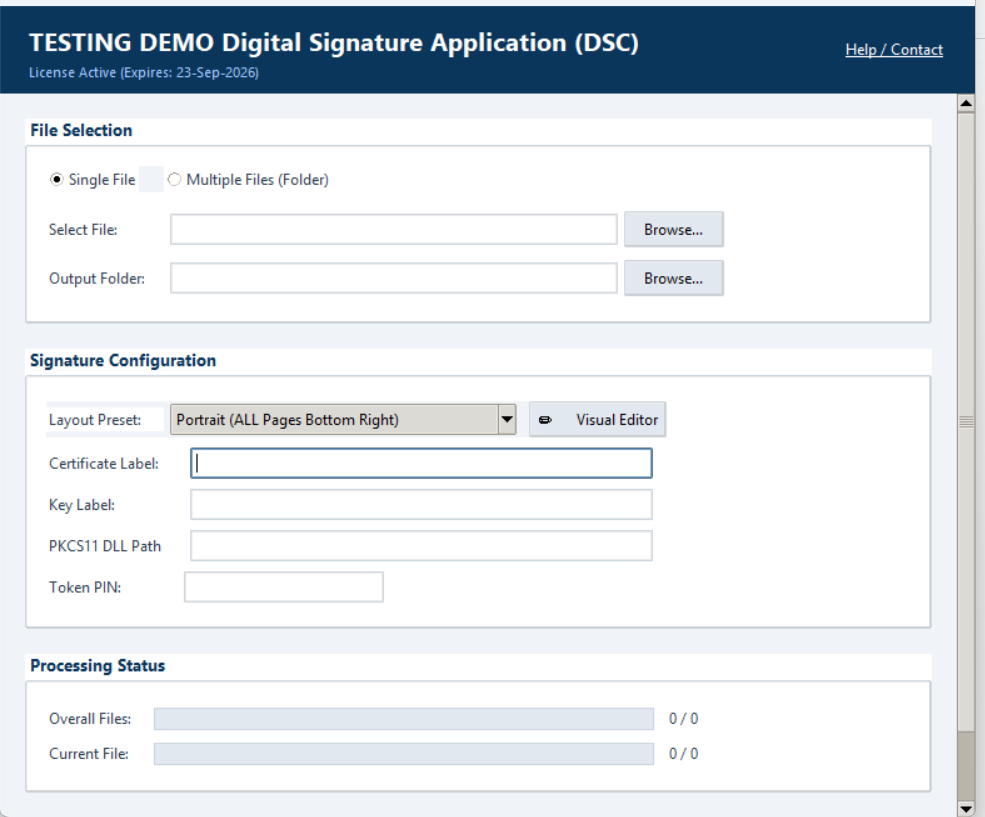
Flowsigna — Digital Signature (DSC) Tool
Flowsigna Digital Signature Tool showing file selection and signature configuration
Who Needs This

Anyone who signs PDFs for business, regularly

GeM Bid Submissions Tender Documents GST & E-Invoicing Board Resolutions & Contracts Bulk Customer Invoices
Supported Workflows

From one document to hundreds

1
Insert USB Token
2
Select PDF(s)
3
Set Signature Placement
4
Auto-Sign Batch
5
Verify & Export
📄
Setup & Signing Configuration Guide Selecting single vs. batch files, every Signature Configuration field explained, and how to find your PKCS11 DLL path. This guide is available to licensed Flowsigna customers — request your copy below and we'll email it to you.
Features

Built around real filing deadlines

📁

Batch Processing

Sign an entire folder of PDFs in one run instead of one at a time.

📄

Custom Placement

Control exactly where the signature appears on each document.

📋

Signing Log

A record of what was signed, when, and with which token — for your own audit trail.

🔐

Token-Based Security

Signing happens through your Class 2/3 USB DSC token — the private key never leaves the hardware.

Signature Verification

Check that a signed PDF's signature is valid and intact before you submit it.

🖥

Simple Desktop App

No command line, no scripts — a guided Windows interface from start to finish.

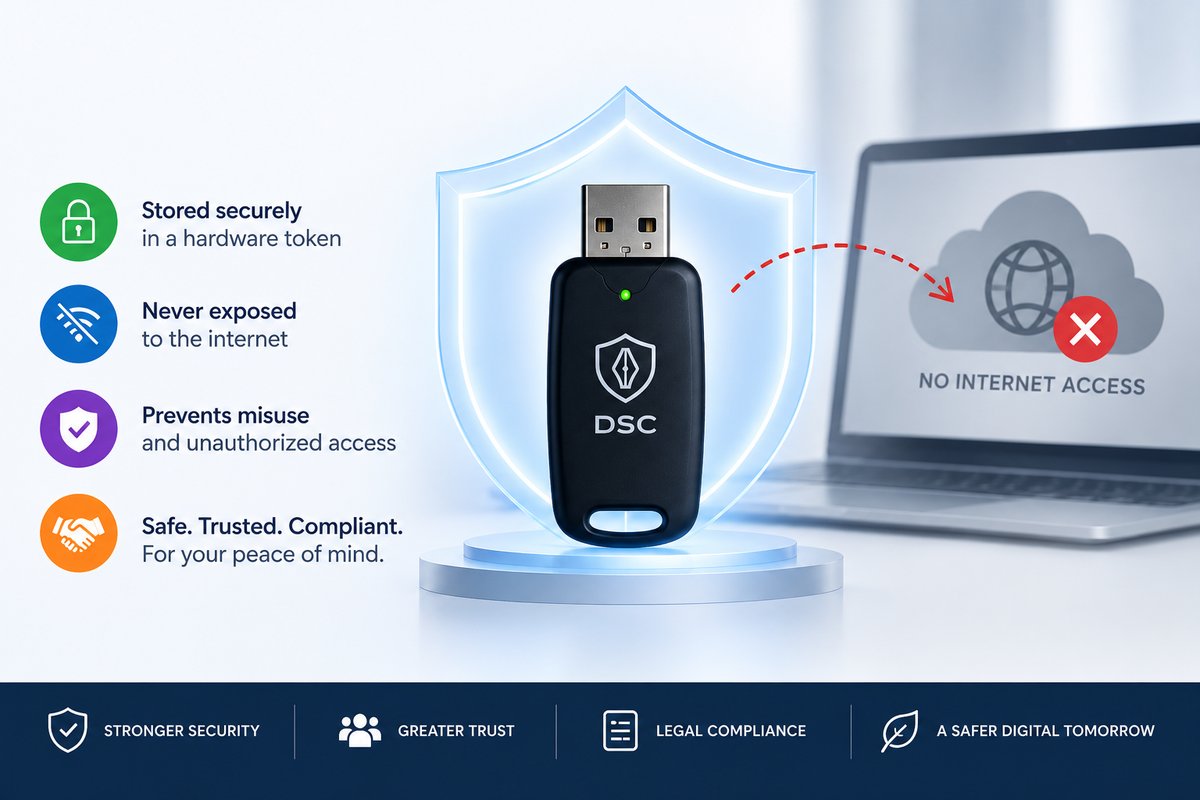
A USB DSC token inside a glowing shield next to a laptop showing 'No Internet Access', illustrating that the signing key stays offline
Security

Your signing key never touches the internet

All cryptographic signing is performed by your physical USB DSC token — the tool only orchestrates which PDFs get signed and where. The private key material never leaves the token, and no document content is uploaded anywhere during signing.

System Requirements

What you need to get started

DSC Token

A valid Class 2 or Class 3 USB Digital Signature Certificate token with drivers installed.

Windows PC

Windows 10/11 with a free USB port for the token.

PDF Documents

Any standard, non-password-protected PDF files you need signed.

Subscription

Included in every Flowsigna plan

See the Pricing page for full details on what's included at each tier.

View Pricing Plans
FAQ

DSC Tool — common questions

Standard Class 2 and Class 3 USB DSC tokens used across India for GST, MCA and GeM filings, once the manufacturer's drivers are installed on your PC.

No — this uses your own government-recognised DSC token for legally valid digital signatures, not a third-party e-signature service.

The token requires its PIN to be entered for signing, so a person needs to be present to authorise each signing session — this is a security requirement of the DSC token itself.

Request a Free Demo

See a real batch-signing run on your own sample documents.